
Guide · Learn Chinese
Learn Chinese with the China Lernen app — free and without an account
Vocabulary with a system, characters with stroke order, tone training — HSK 1 to 6, completely free and with no sign-up. This guide shows you how to start, back up your progress and set up the AI tutor. Heads-up: the app's interface and explanations are currently in German.
Last updated: 14 August 2026
Overview
What the app can do
The China Lernen app runs entirely in the browser — nothing to install, nothing to pay, no account. Four practice areas cover everything you need for the official HSK levels 1 to 6:
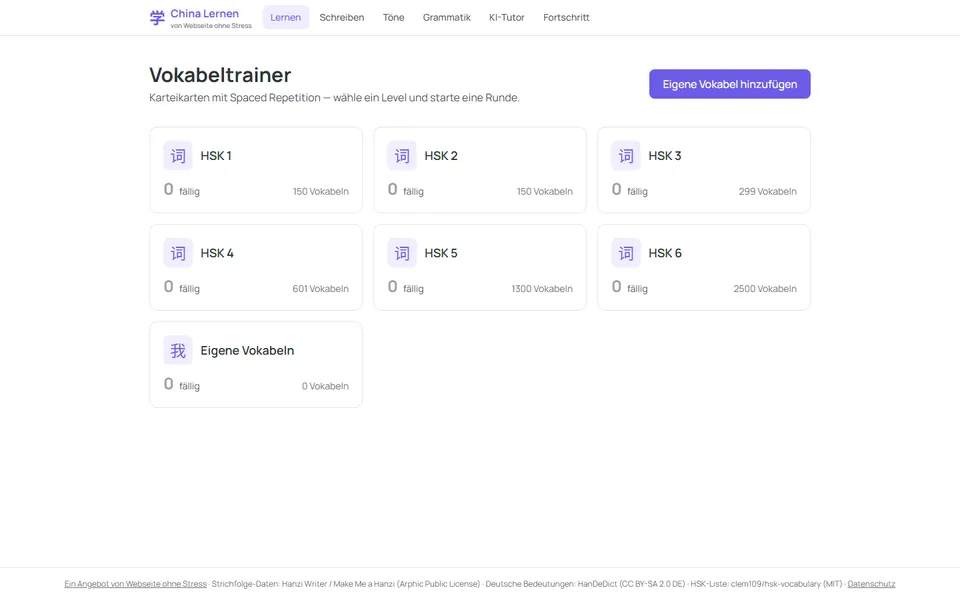
Learn — vocabulary trainer
Flashcards with spaced repetition: the app remembers what you know and shows you difficult words more often. Over 5,000 words, sorted by HSK level — plus your own vocabulary if you want to add any.
Write — stroke order
You draw the characters yourself — with the mouse or your finger. The app shows the correct stroke order as an animation and grades your input. Over 2,600 characters, available offline.
Tones — listening & pinyin
In Chinese, the tone changes the meaning: mā (mum) or mǎ (horse)? Here you train to hear the four tones reliably and to write pinyin with tone numbers.
Grammar & AI tutor
Grammar lessons from the basics up to HSK 6. And the AI tutor: free conversation at your level, sentence-building tasks with corrections and error explanations (currently in German).
Step 1
Getting started — there is no account (and you don't need one)
You can't sign in to the app — that's on purpose. Your learning progress is saved automatically, and it's saved locally in your browser: every time you answer a card or practise a character, the app stores the state in your browser's storage. Next visit, you continue seamlessly.
Why local instead of an account? Because this way nobody collects your data on a server: there's no registration, no email address, no password — and nothing that could be lost or leaked. Your progress belongs to you; it lives on your device.
The flip side: the progress is tied to this one browser on this one device. If you clear your browser data, it's gone — and on your phone you don't automatically continue where you left off on the PC. That's exactly what the save files in the next step are for.
Step 2
Backing up & transferring your progress
You can export your progress as a file at any time — as a backup or to move to another device. Here's how:
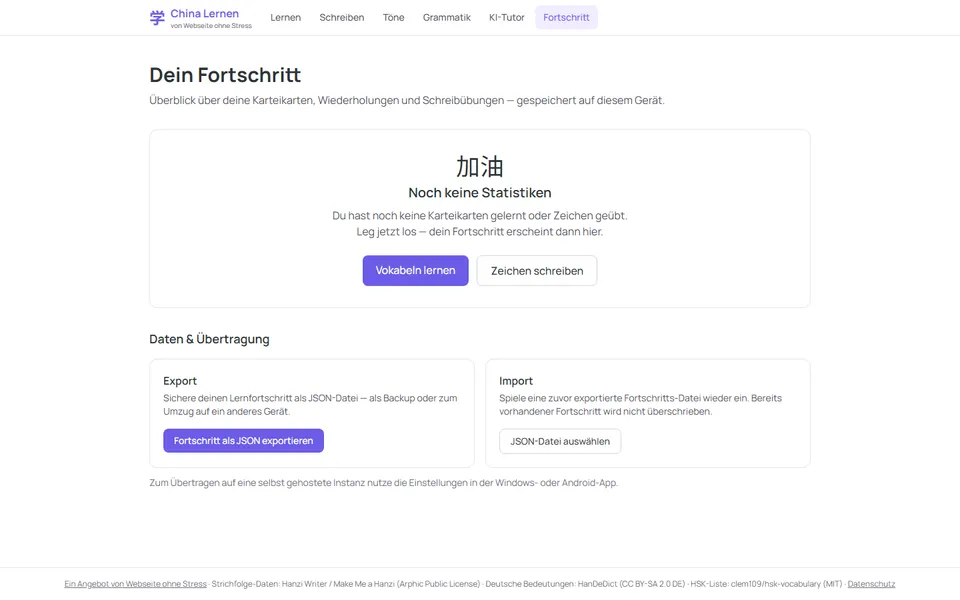
- Export: open the Fortschritt (progress) section in the app and scroll to "Daten & Übertragung" (data & transfer). Click "Fortschritt als JSON exportieren" — you get a file
china-lernen-fortschritt-…jsonto download. Put it somewhere you'll find again. - Import: on the other device (or after a reinstall), same path: Fortschritt → "Daten & Übertragung" → "JSON-Datei auswählen". The app shows a preview (this many cards, this many writing exercises) — confirm, done.
- Good to know: importing does not overwrite existing progress — where they overlap, what's already there wins. So you can't break anything.
Why a file instead of cloud sync? A file is clumsier than an account — but it works without a server, without sign-up and without anyone reading along. Exporting once a month is enough as a backup; for a device switch, export once, import once.
Step 3
No sound? Here's the fix
The speech output (speaker buttons, listening exercises) uses the voices your system provides — and there's an important difference between browsers:
- Edge and Chrome come with online voices for Chinese — sound usually works right away.
- Brave and Firefox only use the voices that are installed in Windows. Without a Chinese language pack, it stays silent.
The fix for Brave & Firefox — one-time, takes two minutes:
- Open Windows Settings → Time & language → Language & region.
- Under Preferred languages, click "Add a language" → choose Chinese (Simplified, China).
- Important: installing the language pack / text-to-speech is enough — Windows stays in your language, you do not have to switch the display language.
- Close the browser completely and restart it — after that, Brave speaks Chinese too.
Why doesn't the browser just tell you? Unfortunately the speech function doesn't report an error when no suitable voice exists — it simply stays silent. That's why the app itself shows a notice on the Learn and Tones pages as soon as no Chinese voice is found.
Step 4
Setting up the AI tutor (optional)
The AI tutor offers free conversation, sentence-building tasks with corrections and error explanations. It needs an AI model — and you choose yourself where it comes from. Open KI-Tutor in the app and pick a backend:
- OpenAI API: base URL and model are preset (e.g.
gpt-4o-mini) — you only enter your API key. Cost: a few cents per exercise, billed through your OpenAI account. - Ollama: if Ollama runs on your machine, enter the model name (e.g.
qwen3:4b). Important: Ollama must allow browser requests — start it with the environment variableOLLAMA_ORIGINS=*, otherwise the browser blocks the connection. - LM Studio: switch on "Enable CORS" in LM Studio's server tab, then enter the model name in the app.
- Custom: any OpenAI-compatible endpoint works — OpenRouter, Groq, your own server.
After clicking "Verbindung testen" (test connection) you see immediately whether everything works — only then is it saved.
Where does my data go? The API key and settings stay stored locally in your browser, and requests go directly from your browser to the endpoint you chose — there is no server in between. Still, keep in mind: what you write to the tutor is sent to the provider you picked yourself.
Fully offline? The Windows app additionally contains an on-device model (Qwen) that runs entirely on your machine — in the web version that's technically not possible.
Extras
Apps for Android & Windows
The app is also available to install — with the same feature set plus on-device AI (Windows). Both apps are an early version — updates keep coming, and you don't have to go looking for them:
- Web version: always up to date automatically — nothing to do here.
- Android: the app checks for a new version on start and then shows a notice at the top with "Update laden" (load update). The download opens in the browser — you confirm the installation like the first time.
- Windows: updates itself — the app downloads new versions in the background and applies them on the next start.
You can always see the current version number at the bottom of the app.
- Android: download the APK and install it. Android asks once whether you want to install apps from this source — allow it, done. The same applies to later updates: the source stays allowed, you confirm the install once.
- Windows: download the installer. Windows may show a SmartScreen warning on first start (normal for installers without a purchased certificate) — continue via "More info" → "Run anyway".
- iOS: not available at the moment — possible on request.
Your progress can be carried back and forth between the web version and the apps via the JSON file from step 2.
Tick it off
Your starting checklist
- App opened and first learning round started — progress saves by itself.
- Progress exported (Fortschritt → Daten & Übertragung) — from now on regularly, as a backup.
- Sound checked: tried the speaker button on the tones page; if silent in Brave/Firefox, installed the Chinese language pack in Windows.
- Optional: AI tutor connected — OpenAI key entered or Ollama/LM Studio started with CORS enabled, connection test green.
Goes well with this: Lead Scanner: capture trade fair contacts on your phone — the second app to try
A learning app like this for your topic?
I built this app entirely myself — including the Android and Windows versions from the same code. If you have an idea for your own learning app or tool: tell me about it.