
Guide · Lead Scanner
Capture trade fair contacts in seconds — no paper chaos
A photo or a short note is enough: the Lead Scanner recognises contact details, structures your conversation and stores everything locally on your phone. Here you walk through the complete flow from download to export. Heads-up: the app's interface is currently in German.
Last updated: 14 August 2026
Before you start
What the app stores — and where
Leads stay local
Contacts, notes and photos live in the browser storage or in the installed app on your device. There is no account and no public contact list.
Photos stay on the device
Text recognition for name badges or business cards runs locally. The photo itself is not transmitted to the AI service.
Text gets structured
Only the recognised or typed text goes to the AuxData service, so that name, company, note and next step land automatically in the right fields.
Browser or app? For trying it out, the browser version is enough. For the actual fair day the Android app is more practical: it sits on your home screen like a normal app, opens directly and uses the camera comfortably.
Step 1
Enter the event and start capturing
After starting you land in the Erfassen (capture) tab. Enter the name of your trade fair or event at the top, for example "My Expo". Every new lead is automatically assigned to this event. That way you can cleanly filter contacts from several events later.
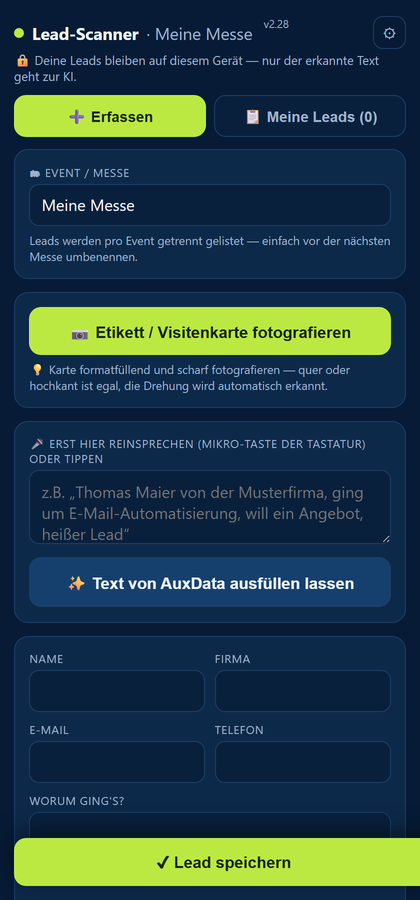
Practical tip: enter the event once before the fair starts. For every following contact you then only photograph or speak.
Step 2
Dictate the conversation instead of typing
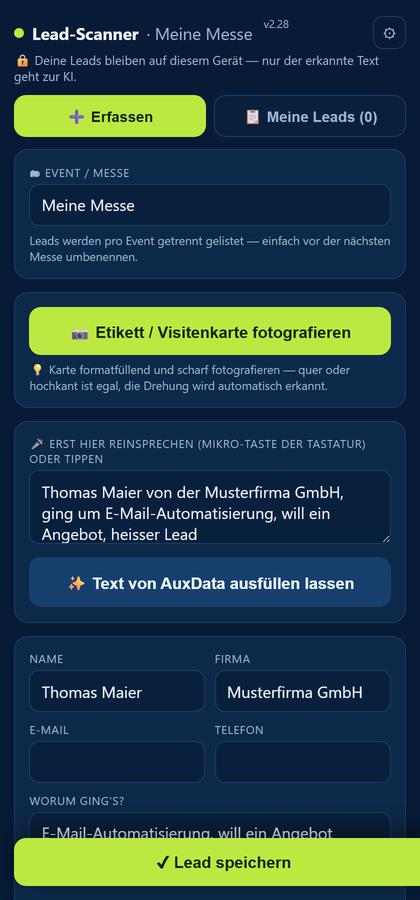
Jot down a few keywords or use your phone keyboard's microphone. A sentence like "Thomas Maier from Musterfirma, interested in email automation, quote next week, hot lead" is completely sufficient.
Then tap "Text von AuxData ausfüllen lassen" (have AuxData fill in the text). The app structures your note and fills in name, company, conversation note, priority and next step. Check the fields briefly and correct them if needed.
Step 3
Photograph a name badge or business card
Tap "Etikett / Visitenkarte fotografieren" (photograph badge / business card) and hold name, company and contact details clearly readable in the frame. Text recognition runs directly on the device. Afterwards AuxData can sort the recognised text into the right fields.
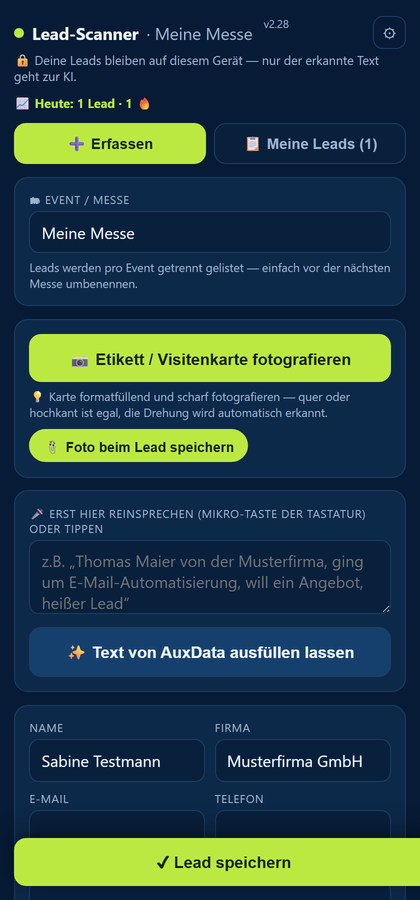
Why photo plus note? The business card says who is standing in front of you. Your short note captures what it was about and what you want to do next — exactly the information that's most often missing later.
Step 4
Review leads, filter and export as CSV
In the Meine Leads (my leads) tab you'll find all saved contacts. Event chips filter the list by event. Priority, note and next step sit right on the card; the pencil lets you edit details afterwards.
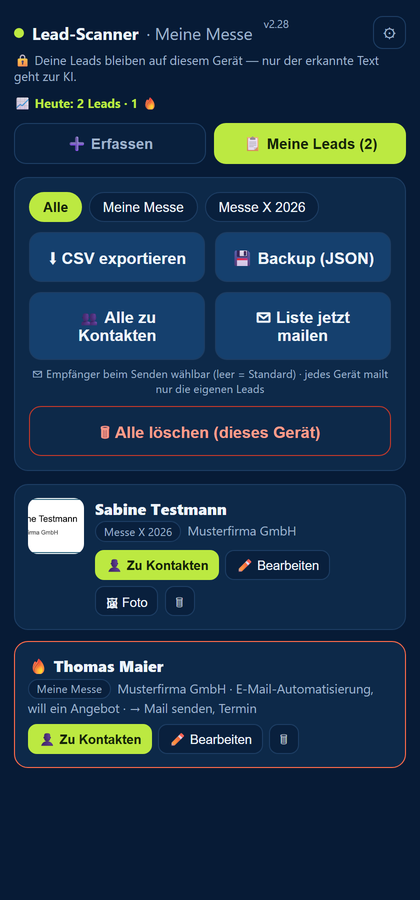
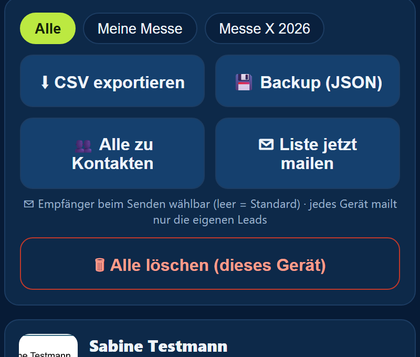
With "CSV exportieren" (export CSV) you download the currently filtered leads as a spreadsheet. Before exporting, check that the right event filter is active.
Step 5
Add a contact to your address book
Tap "Zu Kontakten" (to contacts) on the lead card. The app creates a vCard file that Android can open directly with your contacts app. There you just confirm saving.
Android install
Install the APK and update it later
- Download the APK. Android then shows the download in the notification bar or in the download folder.
- Open the file
leadscan.apk. The first time, Android asks whether your browser may "install unknown apps". Allow this for exactly this browser. - Confirm "Install". Afterwards you can switch the unknown-apps permission off again; the installed app remains.
- On start, the app automatically checks the current version. When there's an update, tap "Update laden" (load update) and install the new APK over the existing app. Your locally stored leads are preserved.
Android warns about the source? APK just means the app comes directly from the maker and not from the Play Store. So download it exclusively via the link on this page or via lead-scanner.webseite-ohne-stress.de.
iPhone/iPad: there's no APK install there. Use the browser version and pin it via "Share" → "Add to Home Screen".
Before the fair day
Your quick checklist
- App installed and opened once — camera function briefly tested.
- Event name entered — all new contacts land in the right event.
- Test lead created — photo, text structuring and saving all work.
- CSV and vCard tried out — you know where the files end up before the first real contact.
- Battery and connection considered — phone charged; the AI structuring needs internet.
Goes well with this: Learn Chinese with the China Lernen app — free and without an account
Ready for your next trade fair contact?
Open the app in the browser or install it on Android. And for a capture app of your own, with your fields and workflows, just send me your idea — no strings attached.